




So why a whole guide, if the answer fits in one line? Because the gap gets filled by others. Pages offering a “download”, store listings with a familiar logo, files sent around in chats — all of them trade on the same reflex. This article explains what the official mobile format really is, how to open it on Android and on an iPhone, how to put an icon on the home screen and what to do when signing in on a phone goes wrong. One reminder before we start: the games and bets are entertainment, and no device makes a win more likely. Open the platform in the mobile browser and see how it works.
Official Mobile Access
There is exactly one official format, and it is mobile web. The operator states that the platform is available exclusively through its own site, which is accessible on both desktop and mobile devices. Read that sentence again, since it settles several questions at once. No listing in an app store. No installation file. No separate “lite” version. The operator does not describe an installable web app either, so the home screen icon discussed later is simply a browser shortcut — a saved link with a picture, not a program.
What is available in the browser? The same account and the same AED wallet as on a computer, with the full menu: Sportsbook, Racing, Casino with demo play, Live Casino. Deposits, the Withdraw button in the profile menu and the Player Controls tools are all there, so nothing forces a return to a laptop. To be sure the genuine page is in use, type the address by hand once and check it letter by letter; the real one sits in the UAE’s own domain zone and names both the operator and the regulator. Bookmark the official address and use only that entry point.
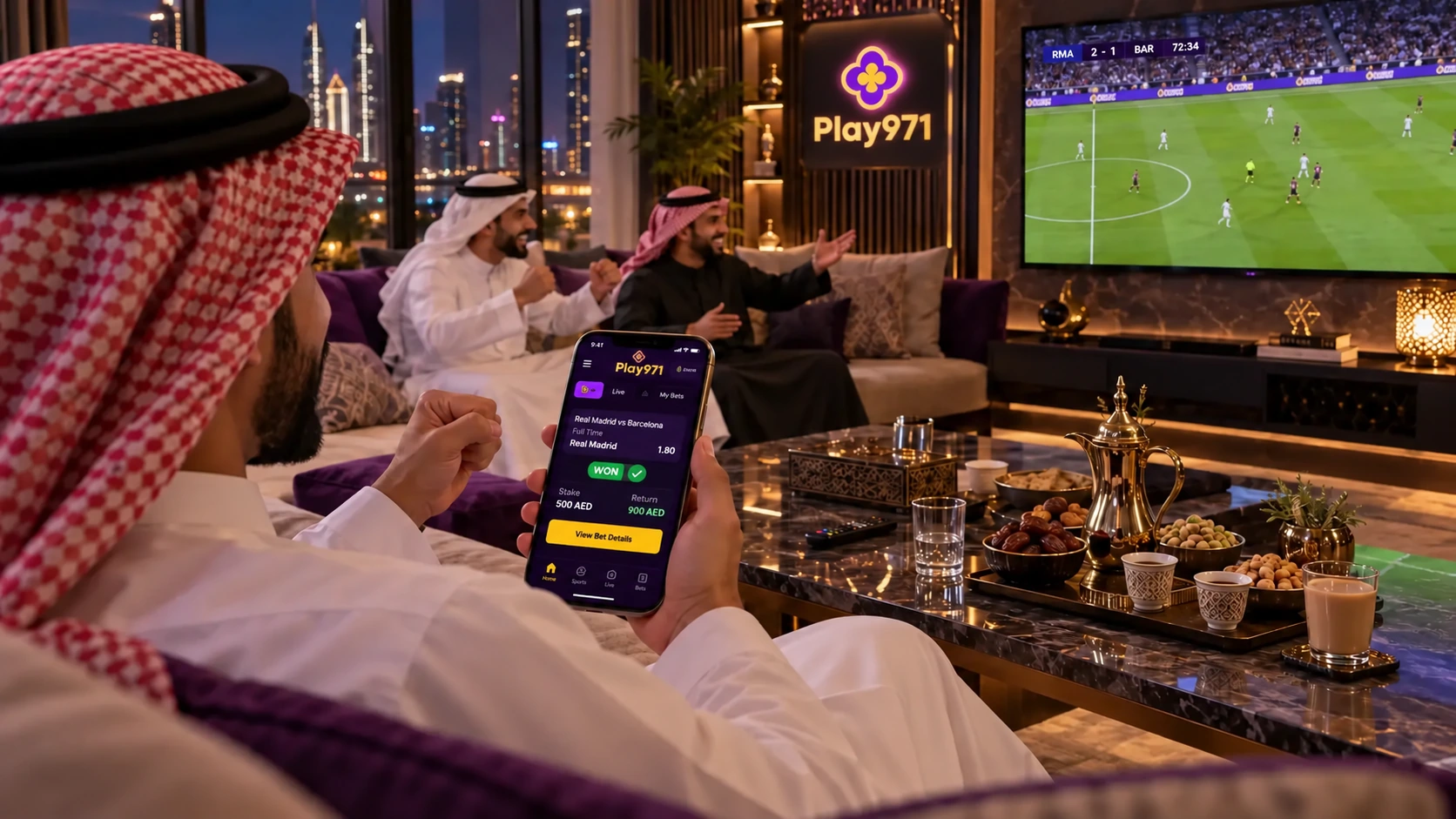
Android Access
On Android the whole scenario is short. Open the browser already in use — Chrome on most phones, though Samsung Internet or Firefox will do — enter the official address and wait for the page to adjust to the screen. The Register and login buttons are in the top-right corner, exactly where they are on desktop. That’s it. No system settings need changing along the way, and installation from unknown sources is never required. If a page asks for that permission, it is not the operator’s page, full stop.
A few Android specifics are worth knowing. Google Pay is on the deposit list, with a minimum of AED 10, a maximum of AED 50,000 and processing that is usually instant; a bank card raises the ceiling to AED 200,000. The operator publishes no minimum system requirements, so no version numbers are quoted here — in practice a phone that runs a current browser copes with the site. Keep that browser updated, honestly, it solves half of all display glitches. And prefer Wi-Fi or a steady mobile signal for live dealer tables. Open the site in the Android browser and sign in.
iPhone and iOS Access
iPhone owners follow the same path through Safari. There is no page in the App Store to look for; the operator says it has no application, so a store listing carrying the brand name is not its product. Open Safari, enter the official address, tap the login button in the top corner and entry is complete. The layout adapts to the screen, and an iPad works the same way, only with more room. Apple Pay is supported for deposits from AED 10 up to AED 50,000, usually instantly, which is kind of the most natural way to pay on this device.
Some small things trip people up on iOS. Private browsing does not keep the session, so a sign-in is requested each time — fine on a borrowed phone, annoying on one’s own. Content blockers can hide buttons or break a payment window; switch them off for this site if a page looks incomplete. Chrome on an iPhone works too, by the way, it just uses a different menu for shortcuts. And lock the phone with Face ID or a passcode, since an unlocked device with a saved password is an open wallet. Open the platform in Safari and check the account.
Installation or Home Screen Shortcut
Nothing needs to be installed, and that is the honest answer to every “how to download” question. What can be done is add a shortcut: an icon on the home screen that opens the site in one tap. It takes about half a minute and uses the browser’s own menu. On Android, in Chrome, it goes like this:
- Open the official site in Chrome and let it load fully;
- Tap the three-dot menu in the top-right corner;
- Choose “Add to Home screen”;
- Check the name and confirm with “Add”.
On an iPhone the route goes through Safari and its Share menu:
- Open the official site in Safari;
- Tap the Share icon at the bottom of the screen;
- Scroll down and select “Add to Home Screen”;
- Tap “Add” in the top-right corner.
The icon now sits among the apps, though it is still just a link. That has a nice side effect: there is nothing to update, because the site is refreshed on the operator’s side and the current version is always opened. Menu wording may differ slightly between browser versions, so look for a similar item if the local one is named differently. Deleting the shortcut works like deleting any icon and does not touch the account. One caution: do not let a shared or family device remember the password. Add the shortcut to the home screen for one-tap access.
Mobile Login and Troubleshooting
Signing in on a phone repeats the desktop routine. Tap the login button in the top-right corner, enter the email or username and the password, then the two-factor code if that option was switched on. The same details work on every device, so there is no separate mobile account to create. After that the profile icon opens the wallet and settings. Most mobile problems come down to a handful of causes, and the table below covers the usual suspects before anyone needs to be contacted.
| Problem | What to try |
|---|---|
| The page does not load | Check the connection; switch off any VPN; allow location access if the browser asks |
| Login details are rejected | Check the keyboard language and Caps Lock; remove an old autofilled password |
| Two-factor code fails | Make sure the phone’s date and time are set automatically; contact live chat |
| Page looks broken or outdated | Refresh it, clear the browser cache, update the browser |
| Apple Pay or Google Pay deposit fails | Use a card in one’s own name and complete the 3D Secure confirmation |
| Cannot play or deposit after login | Check whether a Time-Out or Self-Exclusion is active |
If none of that helps, support is available 24/7 in live chat, with email as a second channel; describe what appears on the screen and never send the password. A phone also deserves one extra thought. It is always in the pocket, which makes it very easy to play more often than planned. The Player Controls button holds deposit limits, a Time-Out from 72 hours to 42 days and Self-Exclusion from 6 months, and the partner service Takalam offers confidential counselling. Nobody can promise a win, on any screen. Sign in from the phone and set a deposit limit before playing.